Getting started
This page shows how to sign in, what each part of the screen does, and how the Safe/Armed switch controls trading. Read it before your first trade. Back to the guide index. Trading words are in the glossary.In short
- You sign in with one password. The app opens on the Live board.
- The top bar holds your money figures, the status, the stake, the Safe/Armed switch and Cancel all.
- A click on a price places an order only while the switch shows Armed.
- The app goes back to Safe after 30 minutes without a trading action, and in some other cases. Each start of the app is in Safe.
- Cancel all works in Safe and in Armed.
The basics
Sign in
- Open the app. The sign-in page asks only for your password.
- Type your password.
- Press
Enter, or click Log in.
Incorrect password. After five wrong
passwords, the app locks the sign-in for 1 minute. Each wrong password after that doubles
the lock, up to 15 minutes. While the lock is on, the page shows
Too many attempts · wait 30s and counts down. If the message comes back after the
countdown, wait and try again.
A session ends after 60 minutes without activity, or 12 hours after you sign in. Then the
app shows the sign-in page again.
Learn the screen
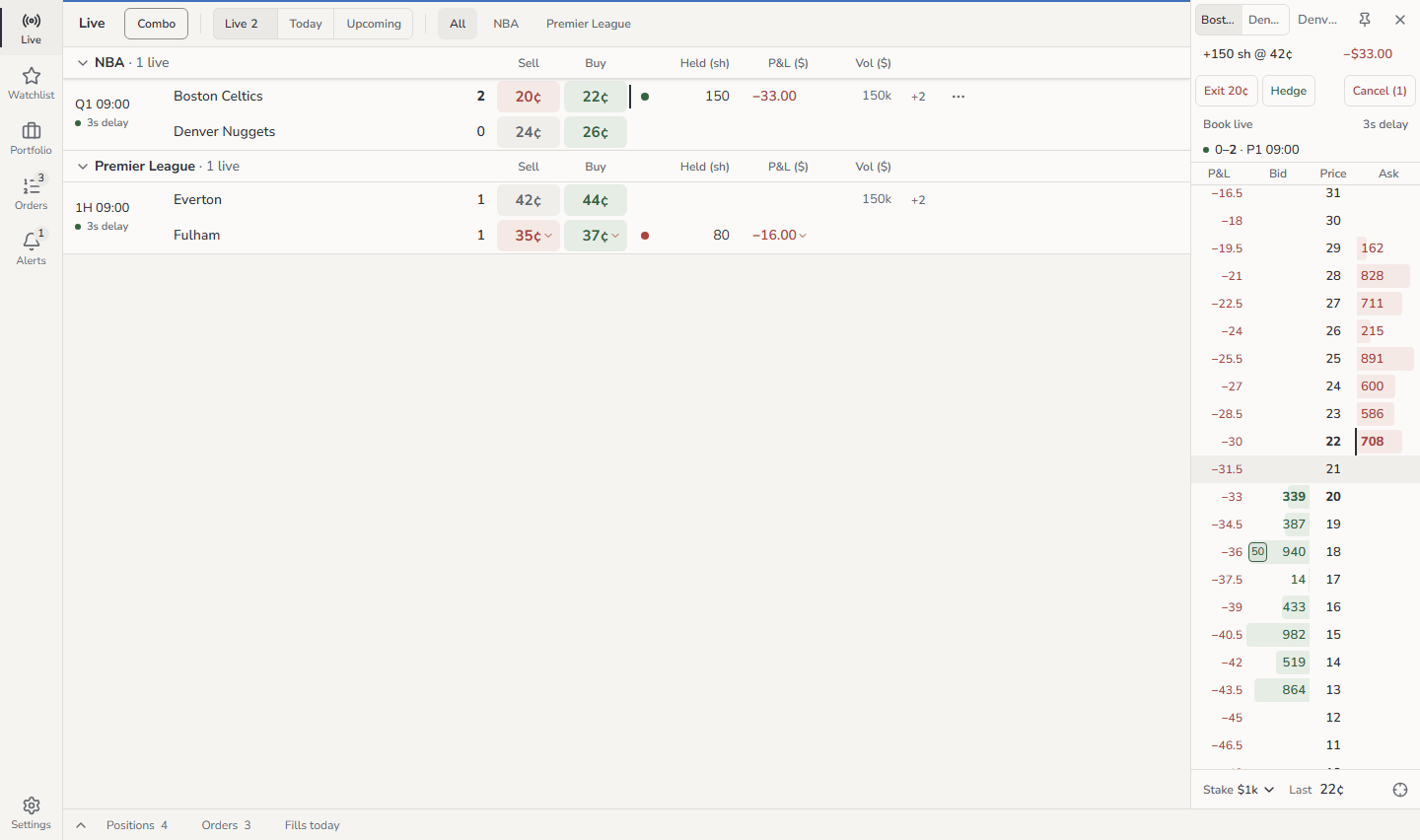

Click Cash, Exposure or P&L to open Portfolio. Click Orders to open
Orders. On a narrower screen, the top bar hides P&L first, then Exposure, and
Cancel all shows only an X and the count.
Set your stake
The stake is the dollar amount that one click spends.- In the top bar, find Stake $. On a phone, use the stake bar at the bottom of the board.
- Click a preset. The preset is highlighted.
- Put the pointer on a price. The tooltip shows what a click sends, for example
Buy $1k → est. 5,000 sh @ 20¢.
Arm and disarm
- On the switch, click Armed. A coloured line shows along the top of the screen. On a phone, the line is at the bottom of the header.
- Trade.
- When you stop, click Safe.
More options
Read the status indicators
The status shows one word for the worst problem. Put the pointer on it, or tap it on a phone, to see one line for each feed, the browser link, trading and the geoblock check.
If more than one problem occurs, the status shows the first one in this order:
Disconnected, Geoblocked, Trading off, Stale, Connecting or Reconnecting,
Checking, Fake data, Live.
When the word changes, the status fills with colour for 5 seconds. Then it becomes muted
again.
Other indicators in the top bar:
When the app goes back to Safe by itself
The switch goes back to Safe in these cases:
Each change to Safe sends a
Trading set to Safe notification with the reason, for example
No trading action for 30 min or Login session expired. There is no notification when
you click Safe, Log out or Log out everywhere. Activity outside the app sends
its own notification. See Alerts and notifications.
When Polymarket accepts only cancels, or the clock of the server is wrong, the switch stays
Armed, but the app refuses each new order. The tooltip of the switch gives the reason.
When the switch reads Off
The switch shows Off when you cannot arm. Put the pointer on it, or tap it on a phone, to see the reason, for exampleTrading off · geoblocked. The FAQ
lists each reason and what to do.
Use the app on a phone
The phone layout has the same features, arranged for touch:
Tap the cash figure to see your cash, exposure, unrealised P&L and open orders.
A tap places an order only if your finger lifts within half a second and moves less than
8 pixels. Thus a scroll never places an order.
Good to know
- The server checks each order again, whatever the screen shows. A grey button is only a hint.
- When more than one panel can take the trading keys, for example the board and a docked
ladder, a thin line along the top of a panel shows which panel has the focus. Click a
panel, or press
F6, to move the focus. - To sign out, click Log out in the menu. Log out everywhere ends all sessions on all devices, this one too.