Trading
This page tells you how to place, move and cancel orders, how to use the price ladder, and how to exit or hedge a position. To look up an order status or a reject message, see Order rules. Back to the guide index. Terms are explained in the glossary.In short
- A click on a price sends one limit order at exactly that price, for your stake. It is good till cancelled (GTC). The app never changes it to a market order. There is no confirmation.
- A buy at or above the best ask fills at once, as far as the asks allow. The rest stays on the book at your price. A buy below the ask stays on the book until someone sells to you.
- You need Armed to place or move orders. You can cancel at any time, also in Safe.
- A rejected order shows a red toast with the reason. The app never sends an order again for you.
The basics
Place an order from the board
- Set your stake in the top bar.
- Switch to Armed.
- On Live or Watchlist, find the outcome.
- Click the price under Buy to buy at the best ask. Click the price under Sell to sell at the best bid.
Buy $1k → est. 5,000 sh @ 20¢.
The share count is an estimate. The server calculates the exact size.
A sell sends your stake’s worth of shares, or your whole position if that is smaller. You
cannot sell an outcome that you do not hold: the tooltip of the button reads
No position to sell.
If the price button cannot send, its tooltip gives the reason, for example
Safe: arm to trade or Below minimum size (5 sh; this is 2.5 sh).
Place an order on the ladder
The ladder shows every price of one outcome, one row for each tick. To open a ladder:- On Live or Watchlist, click a team or outcome name.
- In Portfolio, click a row. The ladder opens under the row. On a phone, tap the card.
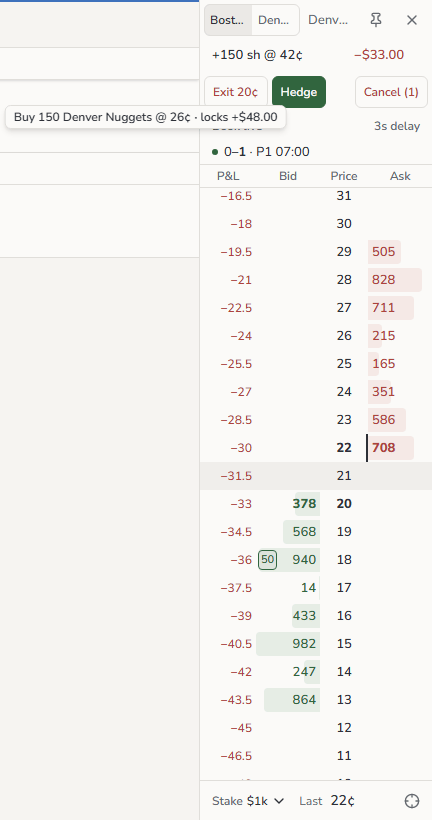
Above the rows:
- The outcome names, to switch outcome, and the market name when there is space.
- Your position, such as
+150 sh @ 42¢, and its P&L, orNo position. - Exit 21¢, Hedge and Cancel (N).
- The book status,
Book liveorStale 6s, and the in-play delay, such as3s delay.
Stake $1k), the last trade price and the centre button. When
a game has two outcomes, the ladder shows the team abbreviations, with the full name in
the tooltip.
To place an order:
- Switch to Armed.
- Hover a cell. The tag next to the pointer shows what a click sends.
- Click. The order goes when you press the mouse button, not when you release it.
Best ask 26¢
shows at the edge. Click it, or the centre button, to centre the ladder again.
Cancel an order
The buttons and right-click cancel in Safe, with trading off and while geoblocked. The
C keys need Armed, as every trading key does. Some controls stop while their data
is not live:
- While the book is stale, the ladder rows do not respond, so right-click does not cancel. Use Cancel (N) or Cancel all.
- While order updates are paused, the rows in Orders and in the dock are greyed and do not respond. Use Cancel all.
Cancelled 3 orders. If a cancel fails, the toast
says so, such as Cancelled 3 orders · 1 failed, with the reason under it. An order that
filled before the cancel arrived is an example.
Exit a position
Exit sells your whole position at once. It sells into the bids, from the best one down, as far as needed. It does not go lower than the exit slippage limit: 5 ticks below the best bid by default. It never sells more than you hold.
If you have sells on the book in that outcome, Exit cancels them first, so that the same
shares are not offered two times. It cancels them only after the exit passes every check.
If the exit is refused, your sells stay. See
Exit and your resting sells.
To not pay the spread, use Join instead. It puts a sell for the whole position at the
best ask and waits for a buyer. Join is on the Portfolio row, or press
J.
Hedge a position
In a market with two outcomes, Hedge locks in your profit or loss without a sale. It buys the other outcome, so that both outcomes pay the same, whichever wins.- Switch to Armed.
- Open the ladder of the outcome that you hold.
- Hover Hedge in the ladder header. The tag shows what it sends and what it locks, for
example
Buy 150 Denver Nuggets @ 26¢ · locks +$48.00. - Click Hedge, or press
H. On a phone, tap More actions in the ladder sheet, then tap Hedge.
Earlier hedge still open.
More options
All ladder actions
On desktop:
With the keyboard, on a docked ladder or the ladder in the market view:
On a wide screen, up to four ladders can be docked side by side. When you open another
one, it replaces the one that you used least recently, unless that one is pinned. If all
are pinned, a toast reads
All ladders pinned.
On a phone, the ladder opens as a sheet:
The ladder on a phone does not centre itself. Tap the centre button.
Move an order
Polymarket cannot change an order. Thus a move cancels the old order and places a new one at the new price. The new order goes through every check again.
If the cancel fails, the app places nothing new. A toast says why, such as
Move failed · order not cancelled. You cannot move an order during an in-play delay:
see Sports markets.
Sell your whole position
The exit price. Exit sells at the highest price at which the bids, from the best one
down, hold your whole position. It never goes lower than the best bid minus your exit
slippage (5 ticks by default). Example: you hold 150 sh, 100 sh are bid at 40¢ and 200 sh
at 39¢. Exit sells at 39¢. The first 100 sh fill at 40¢ and the rest at 39¢.
Sometimes the bids within the slippage limit cannot take the whole position. Then Exit
uses the lowest bid within the limit. The bids fill what they can, and the rest stays on
the book at that price. The Exit button then shows a warning icon, with the tooltip
Bids within the slippage limit cover only part of the position; the rest rests at 37¢.
Exit and Join never sell more than you hold. They are not held to the price band or to
some limits: see The exact order rules. The other
ways to sell (a Sell price, an Ask cell, Shift-click, Sell all at) are normal orders.
Exit and your resting sells
Exit and Join check the sell against every rule first. Only when it passes do they cancel the resting sells of the outcome, and then send it.How Hedge works
Hedge is greyed when it cannot send. Hover it for the reason. On a phone, the reason is
the line under Hedge in the More actions sheet.
When you are Armed and press
H while Hedge is greyed, a toast gives the reason:
Hedge not sent · ….
What blocks an order
The server checks every order, whatever the screen shows. An order is refused if:- Trading is off, the location is geoblocked, the account does not work, or the clock is wrong.
- The switch is on Safe, or activity outside the app paused trading.
- The market is closed, or the price or size breaks the market’s rules.
- The book is stale, or the price is outside the price band.
- It would pass one of your risk limits.
Good to know
- Two clicks on the same price within 350 ms place one order, not two.
- A click while the previous order at that price is still on its way does nothing. A line
shows along the bottom of the price button, and its tooltip reads
Sending. - Positions, P&L and liquidation value change only when a fill arrives.
- A moved order is a new order with a new id. If the cancel of the old one fails, the app places nothing new.
- When a message names a wait, wait at least that long before you click again.
- The app sees only the orders it placed with your Session Key. Orders that you place on polymarket.com do not show here, and a trade there switches the app to Safe.