Portfolio and orders
This page shows how to follow what you hold and what waits on the book. Portfolio shows your positions, their value and P&L, your combos and your account history. Orders shows your open orders, the orders refused in this session and today’s fills. Back to the guide index. Terms are explained in the glossary.In short
- Portfolio shows what you hold. Orders shows what waits on the book.
- The bottom dock shows the same positions, orders and fills in a short form on the other pages. Each position in the dock has an Exit button.
- The buttons and keys that place or cancel orders work only while the switch reads Armed. Right-click on an order in Orders cancels it at once, with no menu.
- A greyed value is stale: no updates come from its book now.
- Money moves only on polymarket.com. The app never deposits, withdraws or claims.
The basics
Check your positions and P&L
- Click Portfolio in the left rail, or press
gthenp. - Read the totals at the top of the page.
- Read one row per position below the totals.
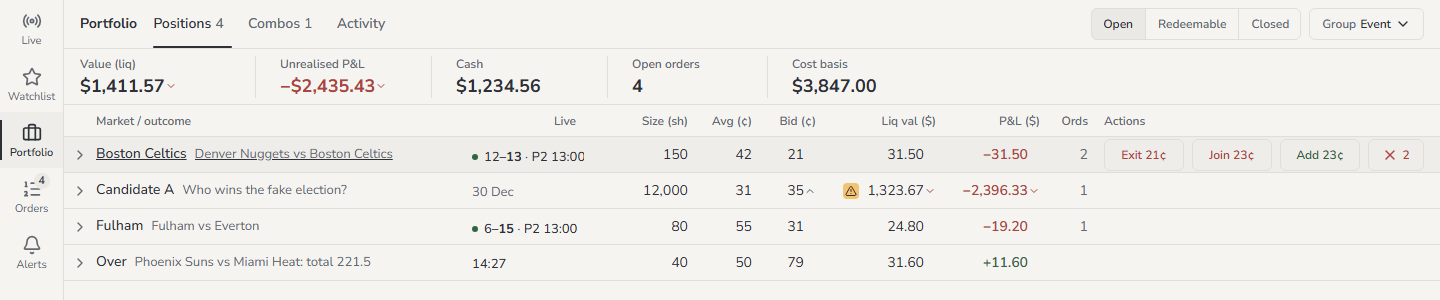
Each position row:
A small warning triangle before Liq val ($) means that the bids cannot take the whole
position. Its tooltip is
The visible bids cannot absorb the whole position; the value covers them only.
Times use one format in the whole app:
Hover a time to see the exact local time.
Values change only when the book changes or when your orders fill. If a value is grey, its
book does not update now. The score shows
· stale when the score feed stops.
Act on a position
Hover the row to show its buttons. On a phone, each position is a card with its buttons always shown.
All four buttons need Armed. In Safe they are grey, and their tooltip says
Safe. Other tooltips on a grey button: No exit price yet, No asks, Stale,
Market closed, Trading off.
To use the keys on desktop:
- Click the list of positions.
- Press
↑or↓to select a row. - Press
E,J,AorC.
↑, ↓ and ↵ work in Safe. The letter keys work only while Armed.
When a small triangle shows on the Exit button, the bids within your exit slippage
cannot take the whole position. The tooltip gives the price where the rest of the position
stays on the book.
Open the ladder of a position
- Click the row, or select it and press
↵. - The row opens. The price ladder is on the left and Orders in this market is on the right.
- Click the row again, or press
↵, to close it.
See your open orders
- Click Orders in the left rail, or press
gtheno. - Make sure that the Open tab is selected.
4 open · $1,821.00 resting. Click the chevron
on a market heading to close or open that market.
On a phone, each order is a card. Tap the card to see the best price, the distance and the
age.
Cancel an order
Right-click and a touch and hold cancel at once. No menu opens. An order in an in-play
delay shows the tooltip
In delay window: the cancel is sent when it ends.
More options
Change what Portfolio shows
Expiry puts positions in
Today, This week, Later and No end date. League
puts positions that are not in a game in Other.
A group with two or more positions gets a heading. The heading shows the name, the count,
the total Liq val ()** and **P&L (), and the number of open orders. Hover the heading
to show an X that cancels the orders of that group. Click the heading to close or open the
group.
The app keeps your grouping and sort for your next visit.
Claim winnings
When a market resolves, its positions move to Redeemable. Each row shows:
The link opens polymarket.com in a new tab. You claim there. The app does not claim for
you. When there is nothing to claim, the tab shows
Nothing to claim.
Closed lists the positions that you do not hold now, with their realised P&L in
Realised. When there are none, it shows No closed positions.
Look at your history
The Activity tab has a P&L chart and the history of the account.- The chart shows 1D, 1W, 1M or All. It opens on 1W.
- The history has the columns Time, Market / outcome, Type, Side, Price, Size and Value. Value is green for money in and red for money out.
Work with many orders at once
- Open Orders and select the Open tab.
- Select the orders. Use one of these:
- Click the box at the start of a row.
- Move to a row and press
Space. - Shift-click a second row to select the rows between them.
- Press
Ctrl A, or click the box in the header, to select every order shown.
- Read the bar that replaces the line of totals, such as
3 selected. - Click one action in the bar.
A toast gives the result, such as
Repriced 2 · 1 delayed · 1 unchanged. The app does not
move an order in an in-play delay or with a cancel on its way. It counts them as delayed.
An order that is at the best price already, or that cannot move further, counts as
unchanged.
On a phone, tap Select to start and Done to stop. The bar is at the bottom of the
screen, with the short labels −1, +1 and Join.
Other controls on the Open tab:
See refused orders and fills
In Fills today, Role is
Maker if your order waited on the book, or Taker if it
filled when it arrived. Status shows how the fill settled on chain:
Use the bottom dock
The dock is at the bottom of each page on a screen 768 px wide or more. It is not on a phone. It has three tabs, each with a count: Positions, Orders and Fills today.- Click a tab, or press
`, to open the dock. - Press
`again, or click the chevron, to close it.
To use the dock keys:
- Click the dock, or press
F6until the dock has focus. - Press the key.
If no order is selected,
[, ] and Delete act on the order at the cursor. The same
keys work on the Orders page. The shortcuts page lists every key.
Good to know
- Rows do not move under your pointer. While your pointer or finger is on the Open
tab or the list of positions, new and re-sorted rows wait. A finished or cancelled order
stays in its place, struck through. A pill such as
2 updatescounts the changes that wait. Move the pointer away, or click the pill, to show them. The values in the rows continue to update. - Combos have their own tab. See Exit a combo.
- Exposure. The top bar’s Exposure is the liquidation value of your open positions plus what your open combos cost. Hover it to see the two parts. A combo has no book, so open combos are not in Value (liq), Unrealised P&L or Cost basis.
- Orders from polymarket.com. The app shows only the orders that it placed. It does not show the orders that you place on polymarket.com.
- Order updates paused. If the account feed disconnects, the top bar’s order count goes
grey. Orders and the dock show
Order updates paused: the venue user feed is disconnected. Orders and fills show their last known state.The lists update again when the feed reconnects. - No venue credentials. If Orders shows
No venue credentialsorVenue credentials failed, the app cannot read orders or fills. Positions still show. Tell the person who runs the server.