sesame user guide
sesame is a trading screen for Polymarket. It shows live games and markets, places an order when you click a price, and shows your positions, orders and alerts on one screen. It is made for fast trading on sports games while they are in play, and it works for all Polymarket markets. This guide is for the person who trades with the app. If a trading word is new to you, look it up in the glossary.In short
- Each click on a price places a real order at exactly that price. The app does not ask you to confirm.
- The app places orders only while the switch in the top bar shows Armed. In Safe, a click on a price sends nothing.
- Cancel all in the top bar, or
Ctrl Shift X, cancels all your open orders. It works in Safe too. - The app never moves money. Use polymarket.com to deposit, withdraw and claim.
Quick start
- Sign in. Open the app and type your password.
- Find a game. The Live board shows the games in play. To find a different
market, press
Ctrl Kand type a team, an event or a market. - Set your stake. In the top bar, select an amount in Stake $. One buy click spends this amount or less.
- Arm. On the Safe/Armed switch, click Armed. A coloured line shows along the top of the screen.
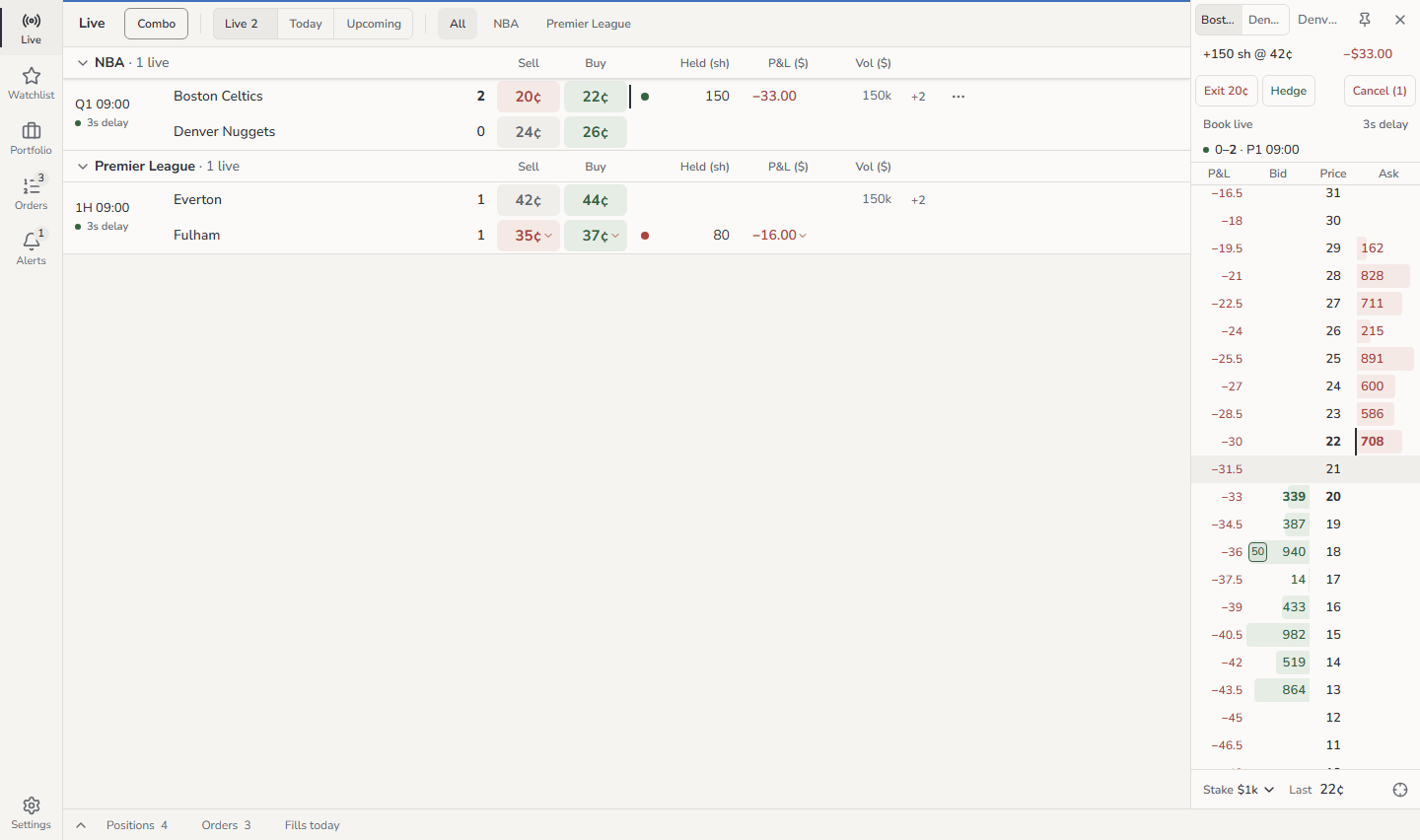
- Click a price. On the board, the green price under Buy buys at the best ask. The red price under Sell sells at the best bid.
- Find the order. The order shows on the ladder, in Orders and in the bottom dock. If the app or Polymarket refuses the order, a red message gives the reason.
- Exit. In Portfolio, put the pointer on the position and click Exit. This sells the whole position.
- Disarm. When you stop, click Safe.
Pages
This guide gives keys for Windows and Linux. On a Mac, use
⌘ where the guide shows
Ctrl.
The person who runs the server uses the deploy guide. All server
settings are in the configuration reference.