> ## Documentation Index
> Fetch the complete documentation index at: https://docs.sesameterminal.com/llms.txt
> Use this file to discover all available pages before exploring further.
# Alerts and notifications
# Alerts and notifications
An alert tells you when a price, a spread or a game reaches the point that you choose.
Notifications are the messages that the app sends you: about your alerts, your fills, your
orders and the feeds. This page tells you how to set alerts, and how to choose where
notifications reach you. Back to the [guide index](index.md). Trading words are explained
in the [glossary](glossary.md).
## In short
* An **alert** is a condition that you set: a price, a spread, a score change, a game
start or a game end. Alerts never place or cancel orders, so they work in **Safe**.
* A **notification** is a message that the app sends you. Examples: an alert that
triggered, a fill, a rejected order, a feed that disconnected.
* A notification can reach you as a toast, a sound, a desktop notification or a Telegram
message. Each of these is a **channel**. You choose the channels for each kind of
notification in **Settings**.
* With no app tab open, only Telegram reaches you. The person who runs the server sets
Telegram up.
## The basics
### Set a price alert from the ladder
1. Move the pointer over a price level on the [ladder](glossary.md#markets-and-prices). A
bell shows at the left of its P\&L cell.
2. Click the bell.
The toast `Alert set · Boston Celtics bid at or above 20¢` shows, with **Undo** for 5
seconds.
You can also set the alert in these ways:
* Hold `Alt` and click the **Bid** or **Ask** cell of the level.
* Right-click the level and choose **Set alert at 20¢**.
* Move the ladder cursor to the row with the arrow keys, then press `Alt ↵`.
* On a phone, long-press a level where you have no orders, then tap **Set alert at 20¢**.
A long-press on a level with your orders cancels them.
The app chooses the direction, so that the alert does not trigger at once:
| Level | The alert waits for |
| - | - |
| Above the middle of the spread | The bid to go up to the level: **Bid at or above** |
| At or below the middle of the spread | The ask to go down to the level: **Ask at or below** |
If one side of the book is empty, the last trade price takes the place of the middle.
The bell stays on that level. It shows crossed out while the alert is paused. Click the
bell to edit or delete the alert.
### Set a game alert from the board
1. Open the menu of the game. Use one of these ways:
* Move the pointer over the game and click **…**.
* Right-click the game.
* On a phone, long-press the game.
2. Choose **Alert on score change**, **Alert at game start** or **Alert at game end**.
A tick shows next to each alert that is set. To delete an alert, choose its ticked item
again. An **Alert on score change** set from this menu repeats, so it follows the whole
game.
Some items are greyed:
| Item | Greyed when | Reason shown |
| - | - | - |
| **Alert at game start** | The game is live | `Game already live` |
| All three | The game ended | `Game ended` |
### Set an alert with the form
Open the form in one of these ways:
* Click **Set alert…** on the **Alerts** page.
* Click the bell in the header of a market.
* On a phone, open the **…** menu in the header of a market and tap **Set alert…**.
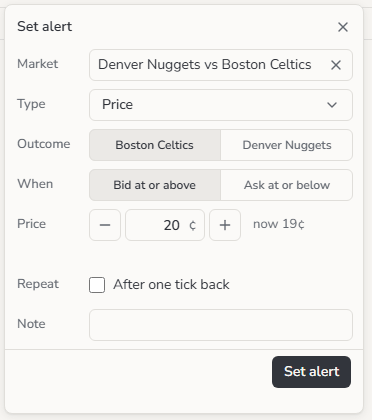 | Field | What to enter |
| - | - |
| **Market** | Search for a market or an event. This field shows only on the Alerts page |
| **Type** | **Price** or **Spread**. For a market with a game, also **Score change**, **Game start** or **Game end** |
| **Outcome** | The outcome to watch. For price and spread alerts |
| **When** | For a price: **Bid at or above** or **Ask at or below**. For a spread: **At or above** or **At or below** |
| **Price** | The level, on the [tick](glossary.md#markets-and-prices) of the market. `−` and `+` move it one tick. `now 19¢` shows the current value |
| **Repeat** | **After one tick back** for price and spread. **Every score change** for a score change. Not for game start or game end |
| **Note** | Up to 200 characters. The note shows in the notification |
Then click **Set alert**.
When you edit an alert, the form title is **Edit alert**, and the button is **Save**. The
form also has **Delete**. You cannot change the **Type** or the **Outcome** of an alert
that you set.
## More options
### Alert types
| Type | Triggers when |
| - | - |
| Price, **Bid at or above** | The best bid gets to your price or higher. You can sell there |
| Price, **Ask at or below** | The best ask gets to your price or lower. You can buy there |
| Spread | The ask minus the bid gets to your level |
| Score change | The score of the game changes. A first score of all zeros does not trigger it |
| Game start | The game goes live |
| Game end | The game ends |
**Without Repeat**, an alert triggers one time. Then its status is `Triggered`. To use it
again, click **Resume**.
**With Repeat**, the alert becomes ready again after the value goes one tick back across
your level. Example: an alert for a bid at or above 60¢ is ready again when the bid goes
down to 59¢. Thus the alert does not trigger on each update at the level. A repeating alert
also triggers at most one time a minute. Game start and game end alerts trigger one time.
### Manage your alerts
Open **Alerts** from the left rail, or press `g` then `a`. On a phone, open it from the
menu.
| Column | Meaning |
| - | - |
| **Status** | `Active`, `Paused` or `Triggered`. `Repeat` shows next to it when the alert repeats |
| **Condition** | What the alert watches, for example `Boston Celtics bid at or above 20¢` |
| **Market** | The market or the game |
| **Now** | The value that the alert watches now. It is grey when the data is [stale](glossary.md#the-app) |
| **Triggered** | When the alert last triggered, and at what value, for example `2m ago · 61¢` |
| **Set** | When you set the alert |
* To pause or resume an alert, move the pointer over its row and click **Pause** or
**Resume**.
* To delete an alert, move the pointer over its row and click **Delete**. The toast
`Alert deleted · …` shows, with **Undo** for 5 seconds.
* To edit an alert, click its row.
* On a phone, tap a card to edit the alert. Long-press it for **Edit**, **Pause** or
**Resume**, and **Delete**.
Keys in the list: `↑` and `↓` move, `↵` edits, `P` pauses or resumes, and `Delete` deletes.
These keys work in Safe. See [Shortcuts](shortcuts.md#the-alerts-list-safe-or-armed).
### Read your notifications
The app keeps every notification for 30 days, newest first. It keeps them even when all
the channels of a kind are off. Open the list in one of these ways:
* Click the inbox button in the top bar. It shows the number of unread notifications.
* Open the **Notifications** tab on the Alerts page, or press `g` then `n`.
* On a phone, open **Notifications** in the menu.
When you open the list, the app marks all notifications as read. An unread notification
keeps its dot until you close the list. Click a notification about a market or a game to
open it.
### Choose where notifications go
Go to **Settings** › **Notifications**. Each kind of notification has four checkboxes, one
for each channel. The kinds are in three groups: **Trading**, **Connection** and
**Security**. The **All** row at the top turns a channel on or off for every kind. Your
changes save without a **Save** button.
| Field | What to enter |
| - | - |
| **Market** | Search for a market or an event. This field shows only on the Alerts page |
| **Type** | **Price** or **Spread**. For a market with a game, also **Score change**, **Game start** or **Game end** |
| **Outcome** | The outcome to watch. For price and spread alerts |
| **When** | For a price: **Bid at or above** or **Ask at or below**. For a spread: **At or above** or **At or below** |
| **Price** | The level, on the [tick](glossary.md#markets-and-prices) of the market. `−` and `+` move it one tick. `now 19¢` shows the current value |
| **Repeat** | **After one tick back** for price and spread. **Every score change** for a score change. Not for game start or game end |
| **Note** | Up to 200 characters. The note shows in the notification |
Then click **Set alert**.
When you edit an alert, the form title is **Edit alert**, and the button is **Save**. The
form also has **Delete**. You cannot change the **Type** or the **Outcome** of an alert
that you set.
## More options
### Alert types
| Type | Triggers when |
| - | - |
| Price, **Bid at or above** | The best bid gets to your price or higher. You can sell there |
| Price, **Ask at or below** | The best ask gets to your price or lower. You can buy there |
| Spread | The ask minus the bid gets to your level |
| Score change | The score of the game changes. A first score of all zeros does not trigger it |
| Game start | The game goes live |
| Game end | The game ends |
**Without Repeat**, an alert triggers one time. Then its status is `Triggered`. To use it
again, click **Resume**.
**With Repeat**, the alert becomes ready again after the value goes one tick back across
your level. Example: an alert for a bid at or above 60¢ is ready again when the bid goes
down to 59¢. Thus the alert does not trigger on each update at the level. A repeating alert
also triggers at most one time a minute. Game start and game end alerts trigger one time.
### Manage your alerts
Open **Alerts** from the left rail, or press `g` then `a`. On a phone, open it from the
menu.
| Column | Meaning |
| - | - |
| **Status** | `Active`, `Paused` or `Triggered`. `Repeat` shows next to it when the alert repeats |
| **Condition** | What the alert watches, for example `Boston Celtics bid at or above 20¢` |
| **Market** | The market or the game |
| **Now** | The value that the alert watches now. It is grey when the data is [stale](glossary.md#the-app) |
| **Triggered** | When the alert last triggered, and at what value, for example `2m ago · 61¢` |
| **Set** | When you set the alert |
* To pause or resume an alert, move the pointer over its row and click **Pause** or
**Resume**.
* To delete an alert, move the pointer over its row and click **Delete**. The toast
`Alert deleted · …` shows, with **Undo** for 5 seconds.
* To edit an alert, click its row.
* On a phone, tap a card to edit the alert. Long-press it for **Edit**, **Pause** or
**Resume**, and **Delete**.
Keys in the list: `↑` and `↓` move, `↵` edits, `P` pauses or resumes, and `Delete` deletes.
These keys work in Safe. See [Shortcuts](shortcuts.md#the-alerts-list-safe-or-armed).
### Read your notifications
The app keeps every notification for 30 days, newest first. It keeps them even when all
the channels of a kind are off. Open the list in one of these ways:
* Click the inbox button in the top bar. It shows the number of unread notifications.
* Open the **Notifications** tab on the Alerts page, or press `g` then `n`.
* On a phone, open **Notifications** in the menu.
When you open the list, the app marks all notifications as read. An unread notification
keeps its dot until you close the list. Click a notification about a market or a game to
open it.
### Choose where notifications go
Go to **Settings** › **Notifications**. Each kind of notification has four checkboxes, one
for each channel. The kinds are in three groups: **Trading**, **Connection** and
**Security**. The **All** row at the top turns a channel on or off for every kind. Your
changes save without a **Save** button.
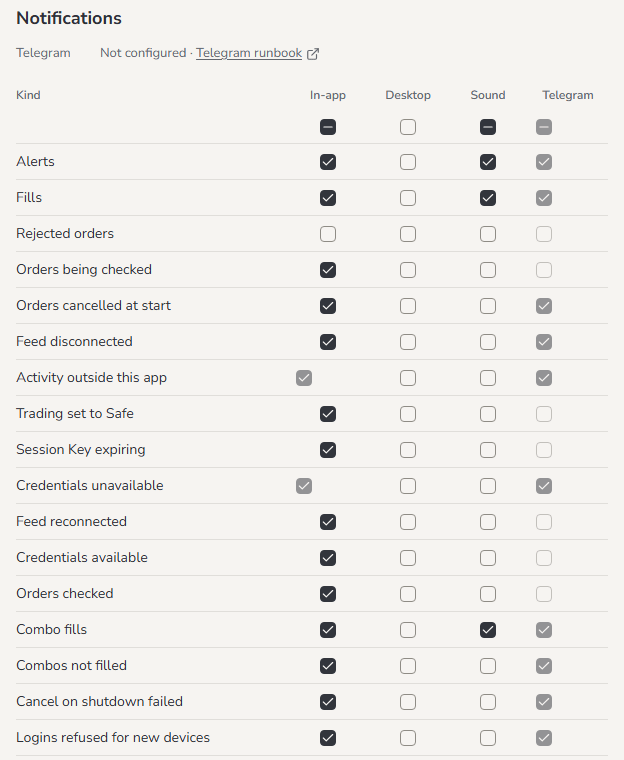 | Channel | What you get |
| - | - |
| **In-app** | A toast in the app. An info toast stays 4 seconds. A warning stays 8 seconds. A critical toast stays until you close it. Every toast has a close X. **Open** takes you to the market, the game or the Alerts page, when the notification has one |
| **Desktop** | A notification from your computer or phone. It shows when the app tab is hidden or does not have focus. It also shows for a kind with no in-app toast. Click it to open the app |
| **Sound** | A short tone: one note for info, two notes for a warning, three notes for critical |
| **Telegram** | A message from the Telegram bot of the app. The server sends it, also when no tab is open |
These kinds are critical: **Feed disconnected**, **Activity outside this app**,
**Credentials unavailable**, **Cancel on shutdown failed**, **Logins refused for new
devices**, and a fill that failed.
### Notification kinds and their defaults
| Kind | When | In-app | Sound | Telegram |
| - | - | - | - | - |
| **Trading** | | | | |
| **Alerts** | An alert triggered | On | On | On |
| **Fills** | Each match of your orders. A fill that leaves its order open has a title such as `Partly filled · 297/3,448 sh` | On | On | On |
| **Rejected orders** | Risk or Polymarket refused an order | Off | Off | Off |
| **Orders being checked** | An order got no answer, and the app checks what happened | On | Off | Off |
| **Orders checked** | How an order with no answer ended | On | Off | Off |
| **Orders cancelled at start** | Polymarket cancelled open orders when a game started. Sent up to 30 seconds after the start | On | Off | On |
| **Combo fills** | An accepted combo quote filled | On | On | On |
| **Combos not filled** | An accepted combo quote was rejected or failed | On | Off | On |
| **Connection** | | | | |
| **Feed disconnected** | A Polymarket feed had no connection for 30 seconds | On | Off | On |
| **Feed reconnected** | A disconnected feed connected again | On | Off | Off |
| **Credentials unavailable** | The credentials of the account no longer work | Always | Off | Always |
| **Credentials available** | The credentials work again | On | Off | Off |
| **Activity outside this app** | Someone traded on the account from somewhere else. Trading changes to Safe | Always | Off | Always |
| **Security** | | | | |
| **Trading set to Safe** | Armed ended for a reason other than your own **Safe** click or log out. Activity outside the app has its own kind | On | Off | Off |
| **Session Key expiring** | 24 hours before the Session Key expires | On | Off | Off |
| **Logins refused for new devices** | Too many logins in one minute from browsers that the app does not know. Known devices can still log in | On | Off | On |
| **Cancel on shutdown failed** | At start, open orders can remain from the last run | On | Off | On |
**Desktop** is off for every kind until you turn it on. **Rejected orders** is off by
default, because the toast after your click already shows the reject.
**Always on.** You cannot turn off **In-app** and **Telegram** for **Activity outside this
app** and **Credentials unavailable**. The tooltip of the checkbox reads `Always on for safety`. Both can
mean that another person uses the account.
The app does not send a notification for fills from before its first start. It also does
not send one again for a fill that an earlier run of the server already saw.
### Turn on desktop notifications
1. Tick a box in the **Desktop** column.
2. When the browser asks for permission, choose **Allow**.
If you chose **Block**, the **Desktop** line above the table reads `Blocked in this browser`. To
change this, allow notifications for the site in the site settings of the browser. Then go
back to the app tab.
Some browsers cannot show desktop notifications, for example Safari on an iPhone outside
an app added to the home screen. The line then reads `Not supported in this browser`.
### Telegram
With Telegram, notifications reach your phone when no app tab is open. The person who runs
the server sets it up, with the [Telegram runbook](../../runbooks/telegram.md). You do not
set it up in the app.
Until it is set up, the **Telegram** line above the table reads `Not configured · Telegram runbook`, and
the **Telegram** column is greyed.
When Telegram is set up:
* Each message comes from the bot of the app, in one chat. It has the title and the text of
the notification.
* The bot only sends. A message that you write to the bot has no effect on the app.
* The server sends at most 20 Telegram messages a minute. Critical messages go first.
Other messages that wait go together as one summary, for example
`12 more notifications`. The full text of each one stays in the app.
* A repeating alert sends at most one message a minute.
* When the server starts, the bot sends a `Server started` message.
* A message never contains a key, a password or an account address.
### Volume and test
The **Volume** slider sets the level of the sounds, from 0 to 100. The default is 70. At 0
it reads `Muted`.
**Send test** sends a `Test notification` to every channel at the same time. It ignores
the checkboxes. You can send one test every 10 seconds. Until then, the button says
`Sent · available again in 8s`. If Telegram refuses the test, the app shows
`Not sent · Telegram refused the message`. Tell the person who runs the server: the
[Telegram runbook](../../runbooks/telegram.md#5-when-the-test-says-not-sent--telegram-refused-the-message)
has the causes.
## Good to know
* Alerts are kept on the server and continue to work after a restart. If the condition of an
active alert became true while the server was stopped, the alert triggers after the
restart.
* Stale data never triggers an alert. The list shows the value in grey, and its tooltip
says `Stale · the alert does not fire while stale`. The app does not use another source
to fill the gap.
* A price between two ticks is refused, for example `Price must be on the 1¢ tick`.
* You can have at most 200 alerts, in any status. At 200, **Set alert…** is greyed with the
reason `200 alerts, the maximum`.
* The browser plays no sound until you first click or press a key in the app tab.
* With more than one app tab open, only one tab shows toasts, plays sounds and shows
desktop notifications: the tab that last had focus.
* For an order that you placed in this browser, the result shows in the toast of your
click. The notification adds no second toast and no sound.
* With no tab open, nothing reaches you in the browser. Alerts still trigger on the server,
and the notifications wait in the list. If you need alerts while you are away, ask the
person who runs the server to set up Telegram.
This documentation is built and hosted on [Mintlify](https://mintlify.com), a developer documentation platform.
| Channel | What you get |
| - | - |
| **In-app** | A toast in the app. An info toast stays 4 seconds. A warning stays 8 seconds. A critical toast stays until you close it. Every toast has a close X. **Open** takes you to the market, the game or the Alerts page, when the notification has one |
| **Desktop** | A notification from your computer or phone. It shows when the app tab is hidden or does not have focus. It also shows for a kind with no in-app toast. Click it to open the app |
| **Sound** | A short tone: one note for info, two notes for a warning, three notes for critical |
| **Telegram** | A message from the Telegram bot of the app. The server sends it, also when no tab is open |
These kinds are critical: **Feed disconnected**, **Activity outside this app**,
**Credentials unavailable**, **Cancel on shutdown failed**, **Logins refused for new
devices**, and a fill that failed.
### Notification kinds and their defaults
| Kind | When | In-app | Sound | Telegram |
| - | - | - | - | - |
| **Trading** | | | | |
| **Alerts** | An alert triggered | On | On | On |
| **Fills** | Each match of your orders. A fill that leaves its order open has a title such as `Partly filled · 297/3,448 sh` | On | On | On |
| **Rejected orders** | Risk or Polymarket refused an order | Off | Off | Off |
| **Orders being checked** | An order got no answer, and the app checks what happened | On | Off | Off |
| **Orders checked** | How an order with no answer ended | On | Off | Off |
| **Orders cancelled at start** | Polymarket cancelled open orders when a game started. Sent up to 30 seconds after the start | On | Off | On |
| **Combo fills** | An accepted combo quote filled | On | On | On |
| **Combos not filled** | An accepted combo quote was rejected or failed | On | Off | On |
| **Connection** | | | | |
| **Feed disconnected** | A Polymarket feed had no connection for 30 seconds | On | Off | On |
| **Feed reconnected** | A disconnected feed connected again | On | Off | Off |
| **Credentials unavailable** | The credentials of the account no longer work | Always | Off | Always |
| **Credentials available** | The credentials work again | On | Off | Off |
| **Activity outside this app** | Someone traded on the account from somewhere else. Trading changes to Safe | Always | Off | Always |
| **Security** | | | | |
| **Trading set to Safe** | Armed ended for a reason other than your own **Safe** click or log out. Activity outside the app has its own kind | On | Off | Off |
| **Session Key expiring** | 24 hours before the Session Key expires | On | Off | Off |
| **Logins refused for new devices** | Too many logins in one minute from browsers that the app does not know. Known devices can still log in | On | Off | On |
| **Cancel on shutdown failed** | At start, open orders can remain from the last run | On | Off | On |
**Desktop** is off for every kind until you turn it on. **Rejected orders** is off by
default, because the toast after your click already shows the reject.
**Always on.** You cannot turn off **In-app** and **Telegram** for **Activity outside this
app** and **Credentials unavailable**. The tooltip of the checkbox reads `Always on for safety`. Both can
mean that another person uses the account.
The app does not send a notification for fills from before its first start. It also does
not send one again for a fill that an earlier run of the server already saw.
### Turn on desktop notifications
1. Tick a box in the **Desktop** column.
2. When the browser asks for permission, choose **Allow**.
If you chose **Block**, the **Desktop** line above the table reads `Blocked in this browser`. To
change this, allow notifications for the site in the site settings of the browser. Then go
back to the app tab.
Some browsers cannot show desktop notifications, for example Safari on an iPhone outside
an app added to the home screen. The line then reads `Not supported in this browser`.
### Telegram
With Telegram, notifications reach your phone when no app tab is open. The person who runs
the server sets it up, with the [Telegram runbook](../../runbooks/telegram.md). You do not
set it up in the app.
Until it is set up, the **Telegram** line above the table reads `Not configured · Telegram runbook`, and
the **Telegram** column is greyed.
When Telegram is set up:
* Each message comes from the bot of the app, in one chat. It has the title and the text of
the notification.
* The bot only sends. A message that you write to the bot has no effect on the app.
* The server sends at most 20 Telegram messages a minute. Critical messages go first.
Other messages that wait go together as one summary, for example
`12 more notifications`. The full text of each one stays in the app.
* A repeating alert sends at most one message a minute.
* When the server starts, the bot sends a `Server started` message.
* A message never contains a key, a password or an account address.
### Volume and test
The **Volume** slider sets the level of the sounds, from 0 to 100. The default is 70. At 0
it reads `Muted`.
**Send test** sends a `Test notification` to every channel at the same time. It ignores
the checkboxes. You can send one test every 10 seconds. Until then, the button says
`Sent · available again in 8s`. If Telegram refuses the test, the app shows
`Not sent · Telegram refused the message`. Tell the person who runs the server: the
[Telegram runbook](../../runbooks/telegram.md#5-when-the-test-says-not-sent--telegram-refused-the-message)
has the causes.
## Good to know
* Alerts are kept on the server and continue to work after a restart. If the condition of an
active alert became true while the server was stopped, the alert triggers after the
restart.
* Stale data never triggers an alert. The list shows the value in grey, and its tooltip
says `Stale · the alert does not fire while stale`. The app does not use another source
to fill the gap.
* A price between two ticks is refused, for example `Price must be on the 1¢ tick`.
* You can have at most 200 alerts, in any status. At 200, **Set alert…** is greyed with the
reason `200 alerts, the maximum`.
* The browser plays no sound until you first click or press a key in the app tab.
* With more than one app tab open, only one tab shows toasts, plays sounds and shows
desktop notifications: the tab that last had focus.
* For an order that you placed in this browser, the result shows in the toast of your
click. The notification adds no second toast and no sound.
* With no tab open, nothing reaches you in the browser. Alerts still trigger on the server,
and the notifications wait in the list. If you need alerts while you are away, ask the
person who runs the server to set up Telegram.
This documentation is built and hosted on [Mintlify](https://mintlify.com), a developer documentation platform.