> ## Documentation Index
> Fetch the complete documentation index at: https://docs.sesameterminal.com/llms.txt
> Use this file to discover all available pages before exploring further.
# Getting started
# Getting started
This page shows how to sign in, what each part of the screen does, and how the Safe/Armed
switch controls trading. Read it before your first trade. Back to the
[guide index](index.md). Trading words are in the [glossary](glossary.md).
## In short
* You sign in with one password. The app opens on the **Live** board.
* The top bar holds your money figures, the status, the stake, the **Safe/Armed** switch
and **Cancel all**.
* A click on a price places an order only while the switch shows **Armed**.
* The app goes back to **Safe** after 30 minutes without a trading action, and in some
other cases. Each start of the app is in Safe.
* **Cancel all** works in Safe and in Armed.
## The basics
### Sign in
1. Open the app. The sign-in page asks only for your password.
2. Type your password.
3. Press `Enter`, or click **Log in**.
The app opens on the **Live** board.
If the password is wrong, the page shows `Incorrect password`. After five wrong
passwords, the app locks the sign-in for 1 minute. Each wrong password after that doubles
the lock, up to 15 minutes. While the lock is on, the page shows
`Too many attempts · wait 30s` and counts down. If the message comes back after the
countdown, wait and try again.
A session ends after 60 minutes without activity, or 12 hours after you sign in. Then the
app shows the sign-in page again.
### Learn the screen
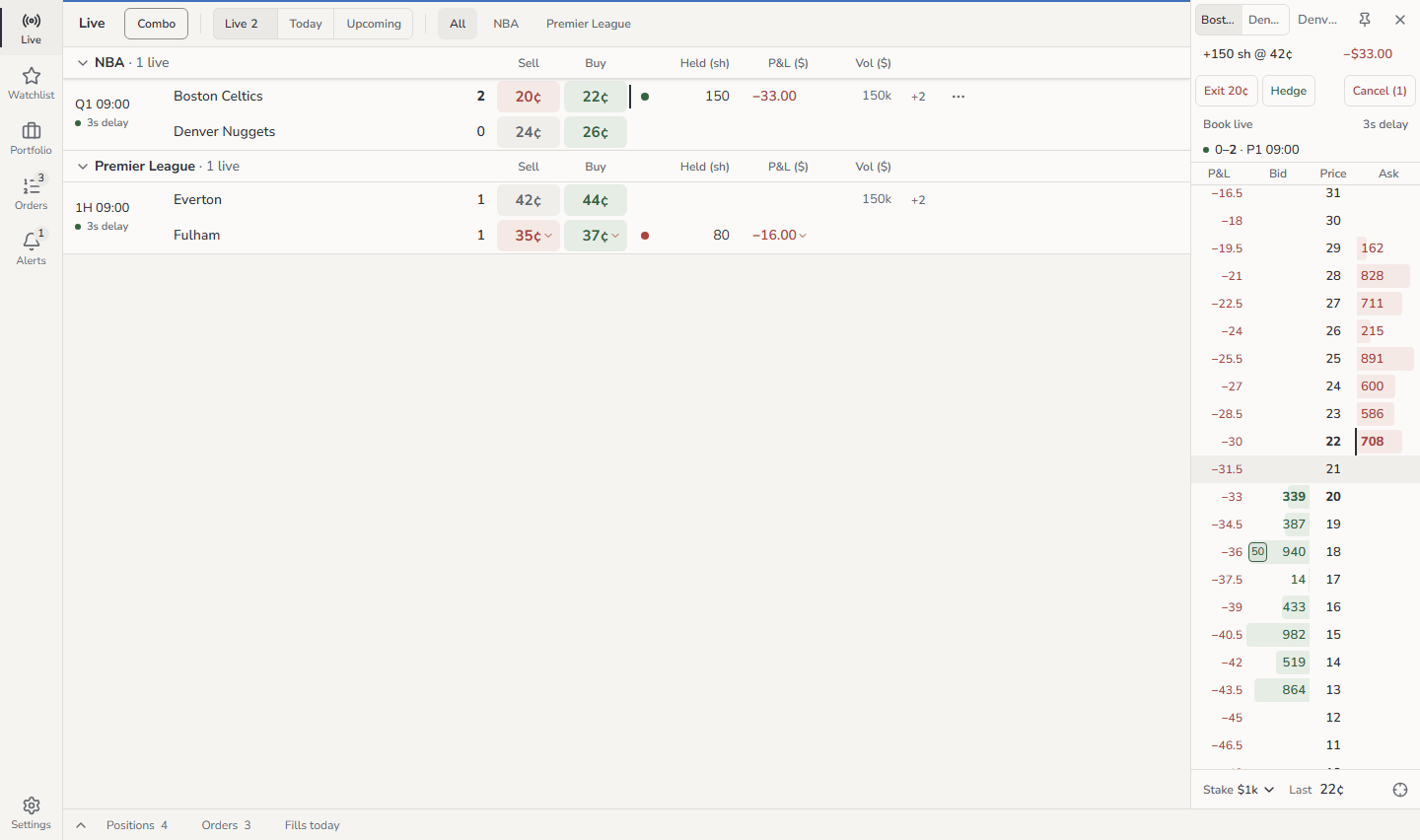 | Area | Where | What it holds |
| - | - | - |
| Top bar | Across the top | Search, your money figures, the status, the stake, the Safe/Armed switch, **Cancel all**, notifications, theme and the menu |
| Rail | Down the left side | **Live**, **Watchlist**, **Portfolio**, **Orders** and **Alerts**, with **Settings** at the bottom. **Orders** shows the number of open orders. **Alerts** shows the number of unread notifications |
| Board | In the middle | The page that you select in the rail. **Live** shows the games by league, with a **Sell** and a **Buy** price for each outcome |
| Ladder | Docked on the right | All prices of one outcome, one row for each tick. Click a team name on the board to dock its ladder. Up to four ladders show side by side. A narrow window shows fewer |
| Dock | Along the bottom | The tabs **Positions**, **Orders** and **Fills today**, each with a count. Each position has an **Exit** button. Click a tab, or press `` ` ``, to open or close the dock |
| Area | Where | What it holds |
| - | - | - |
| Top bar | Across the top | Search, your money figures, the status, the stake, the Safe/Armed switch, **Cancel all**, notifications, theme and the menu |
| Rail | Down the left side | **Live**, **Watchlist**, **Portfolio**, **Orders** and **Alerts**, with **Settings** at the bottom. **Orders** shows the number of open orders. **Alerts** shows the number of unread notifications |
| Board | In the middle | The page that you select in the rail. **Live** shows the games by league, with a **Sell** and a **Buy** price for each outcome |
| Ladder | Docked on the right | All prices of one outcome, one row for each tick. Click a team name on the board to dock its ladder. Up to four ladders show side by side. A narrow window shows fewer |
| Dock | Along the bottom | The tabs **Positions**, **Orders** and **Fills today**, each with a count. Each position has an **Exit** button. Click a tab, or press `` ` ``, to open or close the dock |
 The top bar, from left to right:
| Item | What it does |
| - | - |
| Search | Opens the [command palette](shortcuts.md#search-with-the-command-palette) (`Ctrl K`) |
| **Cash** | Your cash that you can spend |
| **Exposure** | The liquidation value of your positions plus the cost of your open combos. Put the pointer on it to see the two parts |
| **P\&L** | Your unrealised P\&L |
| **Orders** | The number of your open orders |
| Status | A dot and one word for the state of the app. See [Read the status indicators](#read-the-status-indicators) |
| **Stake \$** | Your stake presets. The highlighted preset is the stake of each click |
| **Safe / Armed** | The trading switch |
| **Cancel all** | Cancels all your open orders. The number is the count of open orders |
| Notifications | Your notification history, with the number of unread notifications |
| Theme | **Light**, **Dark** or **System** |
| Menu | **Settings**, **Hotkeys**, **Log out** and **Log out everywhere** |
Click **Cash**, **Exposure** or **P\&L** to open **Portfolio**. Click **Orders** to open
**Orders**. On a narrower screen, the top bar hides **P\&L** first, then **Exposure**, and
**Cancel all** shows only an X and the count.
### Set your stake
The stake is the dollar amount that one click spends.
1. In the top bar, find **Stake \$**. On a phone, use the stake bar at the bottom of the
board.
2. Click a preset. The preset is highlighted.
3. Put the pointer on a price. The tooltip shows what a click sends, for example
`Buy $1k → est. 5,000 sh @ 20¢`.
The stake stays when you go to a different page. After you reload the page, the stake goes
back to the first preset. To change the presets, see
[Settings](settings.md#change-your-stake-presets).
### Arm and disarm
1. On the switch, click **Armed**. A coloured line shows along the top of the screen. On a
phone, the line is at the bottom of the header.
2. Trade.
3. When you stop, click **Safe**.
In **Safe**, a click on a price sends nothing, and a ring shows around the switch one time.
You can cancel orders in Safe.
## More options
### Read the status indicators
The status shows one word for the worst problem. Put the pointer on it, or tap it on a
phone, to see one line for each feed, the browser link, trading and the geoblock check.
| Word | Meaning |
| - | - |
| `Live` | All connections work |
| `Loading` | The app waits for its first status from the server |
| `Connecting` / `Reconnecting` | The browser tries to connect to the server of the app. Until it connects, clicks on prices do not trade |
| `Disconnected` | The browser had no connection to the server for 10 seconds, or it cannot get the status from the server. Clicks on prices do not trade |
| `Geoblocked` | Polymarket does not allow trading from the location of the server. The tooltip names the location, for example `Geoblocked · US-VA`. Trading is off |
| `Trading off` | Trading is switched off on the server |
| `Stale` | A Polymarket feed stopped. Its prices are grey, and you cannot click them |
| `Checking 1` | Polymarket did not answer an order. The app asks Polymarket what happened. See [Orders being checked](order-rules.md#orders-being-checked) |
| `Fake data` | Phone only. The server uses a demo venue. Prices, games and orders are not real |
If more than one problem occurs, the status shows the first one in this order:
`Disconnected`, `Geoblocked`, `Trading off`, `Stale`, `Connecting` or `Reconnecting`,
`Checking`, `Fake data`, `Live`.
When the word changes, the status fills with colour for 5 seconds. Then it becomes muted
again.
Other indicators in the top bar:
| Indicator | Meaning |
| - | - |
| `Fake` / `Fake data` | The server uses a demo venue. Nothing that you see or do goes to Polymarket |
| `Not connected` | The server has no account set up |
| `Read-only` | The app can read your positions. It cannot see cash or orders, and it cannot trade |
| `Connecting` | The server checks the credentials of the account |
| `Account error` | The credentials of the account failed. The tooltip gives the reason. Click it to open **Settings** › **Account** |
| `Key expires in 5d` | The Session Key that lets the app trade expires soon. This shows from 14 days before. Tell the person who set up your account |
| `Session Key expired` | Trading stops until that person renews the key |
| A grey figure | The figure is not up to date. Its tooltip gives the reason, for example `Account data stale: waiting for the server` |
### When the app goes back to Safe by itself
The switch goes back to Safe in these cases:
| What happened | What you see |
| - | - |
| No trading action for 30 minutes. To change the time, see [Settings](settings.md#change-a-risk-limit) | In the last 2 minutes, the **Armed** side counts down (`1:59`). The tooltip of the switch shows, for example, `Safe in 12:04 without a trading action` |
| The app started again | Each start is in Safe |
| You logged out, or no login session is left | |
| The geoblock check failed, or it reported a block | `Geoblocked` or `Trading off` |
| The credentials of the account stopped working, or the Session Key expired | `Account error` or `Session Key expired` |
| The app saw activity on the account that it did not place, for example a trade on polymarket.com | An `Activity outside this app` notification. To arm again, you must type your password. See the [FAQ](faq.md#trading-switched-to-safe-after-activity-outside-this-app) |
Each change to Safe sends a `Trading set to Safe` notification with the reason, for example
`No trading action for 30 min` or `Login session expired`. There is no notification when
you click **Safe**, **Log out** or **Log out everywhere**. Activity outside the app sends
its own notification. See [Alerts and notifications](alerts-and-notifications.md).
When Polymarket accepts only cancels, or the clock of the server is wrong, the switch stays
**Armed**, but the app refuses each new order. The tooltip of the switch gives the reason.
### When the switch reads Off
The switch shows **Off** when you cannot arm. Put the pointer on it, or tap it on a phone,
to see the reason, for example `Trading off · geoblocked`. The [FAQ](faq.md#the-switch-reads-off)
lists each reason and what to do.
### Use the app on a phone
The phone layout has the same features, arranged for touch:
| Desktop | Phone |
| - | - |
| Top bar | A header with the menu (the logo), cash, the status, Safe/Armed and **Cancel all** (an X and the count) |
| Rail | A tab bar at the bottom: **Live**, **Watchlist**, **Portfolio**, **Orders**, **Search** |
| Notifications, Alerts, Settings, theme, **Log out**, **Log out everywhere** | In the menu behind the logo |
| Stake in the top bar | The stake bar at the bottom of the board |
| Docked ladder | A ladder sheet that comes up from the bottom. Tap a team to open it. Drag its handle down to close it |
| Right-click | Long-press |
| Tooltips | Tap the status, or the switch when it shows **Off**, to see the reason |
Tap the cash figure to see your cash, exposure, unrealised P\&L and open orders.
A tap places an order only if your finger lifts within half a second and moves less than
8 pixels. Thus a scroll never places an order.
## Good to know
* The server checks each order again, whatever the screen shows. A grey button is only a
hint.
* When more than one panel can take the trading keys, for example the board and a docked
ladder, a thin line along the top of a panel shows which panel has the focus. Click a
panel, or press `F6`, to move the focus.
* To sign out, click **Log out** in the menu. **Log out everywhere** ends all sessions on
all devices, this one too.
This documentation is built and hosted on [Mintlify](https://mintlify.com), a developer documentation platform.
The top bar, from left to right:
| Item | What it does |
| - | - |
| Search | Opens the [command palette](shortcuts.md#search-with-the-command-palette) (`Ctrl K`) |
| **Cash** | Your cash that you can spend |
| **Exposure** | The liquidation value of your positions plus the cost of your open combos. Put the pointer on it to see the two parts |
| **P\&L** | Your unrealised P\&L |
| **Orders** | The number of your open orders |
| Status | A dot and one word for the state of the app. See [Read the status indicators](#read-the-status-indicators) |
| **Stake \$** | Your stake presets. The highlighted preset is the stake of each click |
| **Safe / Armed** | The trading switch |
| **Cancel all** | Cancels all your open orders. The number is the count of open orders |
| Notifications | Your notification history, with the number of unread notifications |
| Theme | **Light**, **Dark** or **System** |
| Menu | **Settings**, **Hotkeys**, **Log out** and **Log out everywhere** |
Click **Cash**, **Exposure** or **P\&L** to open **Portfolio**. Click **Orders** to open
**Orders**. On a narrower screen, the top bar hides **P\&L** first, then **Exposure**, and
**Cancel all** shows only an X and the count.
### Set your stake
The stake is the dollar amount that one click spends.
1. In the top bar, find **Stake \$**. On a phone, use the stake bar at the bottom of the
board.
2. Click a preset. The preset is highlighted.
3. Put the pointer on a price. The tooltip shows what a click sends, for example
`Buy $1k → est. 5,000 sh @ 20¢`.
The stake stays when you go to a different page. After you reload the page, the stake goes
back to the first preset. To change the presets, see
[Settings](settings.md#change-your-stake-presets).
### Arm and disarm
1. On the switch, click **Armed**. A coloured line shows along the top of the screen. On a
phone, the line is at the bottom of the header.
2. Trade.
3. When you stop, click **Safe**.
In **Safe**, a click on a price sends nothing, and a ring shows around the switch one time.
You can cancel orders in Safe.
## More options
### Read the status indicators
The status shows one word for the worst problem. Put the pointer on it, or tap it on a
phone, to see one line for each feed, the browser link, trading and the geoblock check.
| Word | Meaning |
| - | - |
| `Live` | All connections work |
| `Loading` | The app waits for its first status from the server |
| `Connecting` / `Reconnecting` | The browser tries to connect to the server of the app. Until it connects, clicks on prices do not trade |
| `Disconnected` | The browser had no connection to the server for 10 seconds, or it cannot get the status from the server. Clicks on prices do not trade |
| `Geoblocked` | Polymarket does not allow trading from the location of the server. The tooltip names the location, for example `Geoblocked · US-VA`. Trading is off |
| `Trading off` | Trading is switched off on the server |
| `Stale` | A Polymarket feed stopped. Its prices are grey, and you cannot click them |
| `Checking 1` | Polymarket did not answer an order. The app asks Polymarket what happened. See [Orders being checked](order-rules.md#orders-being-checked) |
| `Fake data` | Phone only. The server uses a demo venue. Prices, games and orders are not real |
If more than one problem occurs, the status shows the first one in this order:
`Disconnected`, `Geoblocked`, `Trading off`, `Stale`, `Connecting` or `Reconnecting`,
`Checking`, `Fake data`, `Live`.
When the word changes, the status fills with colour for 5 seconds. Then it becomes muted
again.
Other indicators in the top bar:
| Indicator | Meaning |
| - | - |
| `Fake` / `Fake data` | The server uses a demo venue. Nothing that you see or do goes to Polymarket |
| `Not connected` | The server has no account set up |
| `Read-only` | The app can read your positions. It cannot see cash or orders, and it cannot trade |
| `Connecting` | The server checks the credentials of the account |
| `Account error` | The credentials of the account failed. The tooltip gives the reason. Click it to open **Settings** › **Account** |
| `Key expires in 5d` | The Session Key that lets the app trade expires soon. This shows from 14 days before. Tell the person who set up your account |
| `Session Key expired` | Trading stops until that person renews the key |
| A grey figure | The figure is not up to date. Its tooltip gives the reason, for example `Account data stale: waiting for the server` |
### When the app goes back to Safe by itself
The switch goes back to Safe in these cases:
| What happened | What you see |
| - | - |
| No trading action for 30 minutes. To change the time, see [Settings](settings.md#change-a-risk-limit) | In the last 2 minutes, the **Armed** side counts down (`1:59`). The tooltip of the switch shows, for example, `Safe in 12:04 without a trading action` |
| The app started again | Each start is in Safe |
| You logged out, or no login session is left | |
| The geoblock check failed, or it reported a block | `Geoblocked` or `Trading off` |
| The credentials of the account stopped working, or the Session Key expired | `Account error` or `Session Key expired` |
| The app saw activity on the account that it did not place, for example a trade on polymarket.com | An `Activity outside this app` notification. To arm again, you must type your password. See the [FAQ](faq.md#trading-switched-to-safe-after-activity-outside-this-app) |
Each change to Safe sends a `Trading set to Safe` notification with the reason, for example
`No trading action for 30 min` or `Login session expired`. There is no notification when
you click **Safe**, **Log out** or **Log out everywhere**. Activity outside the app sends
its own notification. See [Alerts and notifications](alerts-and-notifications.md).
When Polymarket accepts only cancels, or the clock of the server is wrong, the switch stays
**Armed**, but the app refuses each new order. The tooltip of the switch gives the reason.
### When the switch reads Off
The switch shows **Off** when you cannot arm. Put the pointer on it, or tap it on a phone,
to see the reason, for example `Trading off · geoblocked`. The [FAQ](faq.md#the-switch-reads-off)
lists each reason and what to do.
### Use the app on a phone
The phone layout has the same features, arranged for touch:
| Desktop | Phone |
| - | - |
| Top bar | A header with the menu (the logo), cash, the status, Safe/Armed and **Cancel all** (an X and the count) |
| Rail | A tab bar at the bottom: **Live**, **Watchlist**, **Portfolio**, **Orders**, **Search** |
| Notifications, Alerts, Settings, theme, **Log out**, **Log out everywhere** | In the menu behind the logo |
| Stake in the top bar | The stake bar at the bottom of the board |
| Docked ladder | A ladder sheet that comes up from the bottom. Tap a team to open it. Drag its handle down to close it |
| Right-click | Long-press |
| Tooltips | Tap the status, or the switch when it shows **Off**, to see the reason |
Tap the cash figure to see your cash, exposure, unrealised P\&L and open orders.
A tap places an order only if your finger lifts within half a second and moves less than
8 pixels. Thus a scroll never places an order.
## Good to know
* The server checks each order again, whatever the screen shows. A grey button is only a
hint.
* When more than one panel can take the trading keys, for example the board and a docked
ladder, a thin line along the top of a panel shows which panel has the focus. Click a
panel, or press `F6`, to move the focus.
* To sign out, click **Log out** in the menu. **Log out everywhere** ends all sessions on
all devices, this one too.
This documentation is built and hosted on [Mintlify](https://mintlify.com), a developer documentation platform.